MySuite
As I have written before, you can build efficient and easy to host web apps with Go and SQLite.
I have now developed a suite of personal productivity apps with Go, SQLite and TypeScript+Preact for the web UI.
And a simple app to save links with Go, SQLite and htmx:
I call the whole suite MySuite, which also contains a password manager MyPass made in Rust.
Each of those five has its own native Android app (made in Kotlin).
From XTerm to Alacritty
I have written before how to support tabs and scrollback in XTerm with tmux.
Now it seems like Wayland is replacing X11 as the default window system in Linux desktops. And XTerm, as the name implies, only supports X11. So I wanted to replace XTerm with another terminal with native Wayland support.
After trying a few options, I decided to go with Alacritty. As a bonus, you also get clickable hyperlinks (OSC 8).
Here is how I configured it to work with tmux:
Ubuntu in Ubuntu
I want an easy way to run one or more ephermal Linux VMs in Ubuntu desktop, including the possibility to mount host directories into them in an efficient fashion. Those VMs should have the same CPU architecture and hardware features as the host, no need to emulate some foreign CPU or special hardware, and no GUI in the VMs. The intended use case is sandboxing and isolation for security and reproducability reason. To be used as a cheaper alternative to a remote cloud instance. Or as a more secure alternative to Docker/Podman containers, with possibility to install Docker or Podman in the VM, and run containers there without affecting the host or other VMs (it’s not feasible to nest containers in a secure manner without a proper VM).
How to run a user service with systemd
Most Linux systems uses systemd as init and service manager nowadays.
You can use systemd to start your services, so that they are automatically restarted if they crash, and automatically started when the system boots. You can even do this as a regular user, without root access (then the service will run with permissions of your user), and have it automatically started when the system boots without you having to login.
- Create the
~/.config/systemd/userdirectory if necessary:
mkdir -p ~/.config/systemd/user- Create a service unit configuration file
for your service in that directory
~/.config/systemd/user/myservice.service:
[Unit]
Description=MyService

[Service]
Type=exec
LoadCredential=my-password:%h/myservice.pw
ExecStart=%h/.local/bin/myservice -password-file ${CREDENTIALS_DIRECTORY}/my-password
Restart=on-failure

NoNewPrivileges=true
AppArmorProfile=myservice

[Install]
WantedBy=default.target- Load the service definition:
systemctl --user daemon-reload- Enable the service:
systemctl --user enable myservice.service- Start the service
systemctl --user start myservice.service- Enable starting the service on boot without login (you might need to run this as root):
sudo loginctl enable-lingerThis will provide the service with credentials from file ~/myservice.pw, and run the service with AppArmor
profile myservice (which you must create and load first).
Linux sandboxing with bubblewrap
AppArmor is a good way to sandbox programs on a Linux system, but it has some limitations. In particular, it requires you to define a static profile for each program, and changing profiles requires root access. This can be impractical for ad-hoc usages, and in particular if you want to give the program access to a particular directory (such as the current directory). These gaps can be filled with bubblewrap.
Here is how you can use it on Ubuntu 24.04.
Sandbox IntelliJ IDEA with AppArmor
If you have a Linux system with AppArmor, you can use it to sandbox IntelliJ IDEA.
Do not install IntelliJ with snap, download the .tar.gz archive instead and unpack it in /opt/JetBrains/.
Then add this file to /etc/apparmor.d.
#include <tunables/global>

profile idea /opt/JetBrains/idea*/bin/* {
    #include <abstractions/base>
    #include <abstractions/consoles>
    #include <abstractions/nameservice>
    #include <abstractions/ssl_certs>
    #include <abstractions/gnome>
    #include <abstractions/xdg-open>
    #include <abstractions/dbus-session>

    /etc/** r,
    /dev/** r,
    /dev/ptmx rw,
    @{PROC}/ r,
    @{PROC}/** r,
    /sys/** r,
    /bin/* rixm,
    /usr/bin/{[^s]*,?[^n]*,??[^a]*,???[^p]*} rixm,
    /usr/local/bin/** rixm,
    /usr/include/** r,
    /usr/lib/ r,
    /usr/lib/** rixm,
    /usr/lib64/ r,
    /usr/lib64/** rixm,
    /usr/libexec/** rixm,
    /usr/sbin/* rixm,
    /usr/share/** r,

    /{,snap/core/[0-9]*/,snap/snapd/[0-9]*/}usr/bin/snap mrCx -> snap_browsers,

    owner @{PROC}/@{pid}/coredump_filter rw,
    owner /tmp/ r,
    owner /tmp/** rwlkix,
    owner /var/tmp/ r,
    owner /var/tmp/** rwlkix,
    owner /run/user/@{uid}/at-spi/* rw,
    owner /run/user/@{uid}/bus rw,
    owner /run/user/@{uid}/dconf/user rw,
    owner /run/user/@{uid}/gdm/Xauthority r,
    owner /run/user/@{uid}/keyring/ssh rw,

    /opt/JetBrains/** rixm,

    / r,
    /home/ r,
    owner @{HOME}/ r,
    owner @{HOME}/.bashrc r,
    owner @{HOME}/.bash_aliases r,
    owner @{HOME}/.cache/JNA/*/ r,
    owner @{HOME}/.cache/JetBrains/ r,
    owner @{HOME}/.cache/JetBrains/** rwklix,
    owner @{HOME}/.cache/ibus/* rw,
    owner @{HOME}/.config/JetBrains/ r,
    owner @{HOME}/.config/JetBrains/** rwkl,
    owner @{HOME}/.config/dconf/user r,
    owner @{HOME}/.config/ibus/bus/ r,
    owner @{HOME}/.config/ibus/bus/* r,
    owner @{HOME}/.gitconfig r,
    owner @{HOME}/.gitignore r,
    owner @{HOME}/.gradle/ r,
    owner @{HOME}/.gradle/** rwklixm,
    owner @{HOME}/.inputrc r,
    owner @{HOME}/.ivy2/** rwkl,
    owner @{HOME}/.java/** rwkl,
    owner @{HOME}/.junie/ r,
    owner @{HOME}/.junie/** rwkl,
    owner @{HOME}/.local/bin/* rix,
    owner @{HOME}/.local/share/JetBrains/ r,
    owner @{HOME}/.local/share/JetBrains/** rwklix,
    owner @{HOME}/.local/share/kotlin/** rwklix,
    owner @{HOME}/.m2/ r,
    owner @{HOME}/.m2/** rwkl,
    owner @{HOME}/.profile r,
    owner @{HOME}/.ssh/ r,
    owner @{HOME}/.ssh/config r,
    owner @{HOME}/.ssh/known_hosts* r,
    owner @{HOME}/.ssh/*.pub r,
    owner @{HOME}/src/ r,
    owner @{HOME}/src/** rwklix,

    signal (send,receive) set=(int,term,kill) peer=idea,

    ptrace peer=idea,

	profile snap_browsers {
	  #include <abstractions/base>
	  #include <abstractions/dbus-session-strict>

	  /etc/passwd r,
	  /etc/nsswitch.conf r,
	  /etc/fstab r,
 	  /etc/local/fstab r,

	  # noisy
	  deny owner /run/user/[0-9]*/gdm/Xauthority r, # not needed on Ubuntu

	  /{,snap/core/[0-9]*/,snap/snapd/[0-9]*/}usr/bin/snap mrix, # re-exec
	  /{,snap/core/[0-9]*/,snap/snapd/[0-9]*/}usr/lib/snapd/info r,
	  /{,snap/core/[0-9]*/,snap/snapd/[0-9]*/}usr/lib/snapd/snapd r,
	  /{,snap/core/[0-9]*/,snap/snapd/[0-9]*/}usr/lib/snapd/snap-seccomp rPix,
	  /{,snap/core/[0-9]*/,snap/snapd/[0-9]*/}usr/lib/snapd/snap-confine Pix,
	  /var/lib/snapd/system-key r,
	  /run/snapd.socket rw,

	  /usr/bin/systemctl ix,

	  @{PROC}/version r,
	  @{PROC}/cmdline r,
	  @{PROC}/sys/net/core/somaxconn r,
	  @{PROC}/sys/kernel/seccomp/actions_avail r,
	  @{PROC}/sys/kernel/random/uuid r,
	  owner @{PROC}/@{pid}/cgroup r,
	  owner @{PROC}/@{pid}/mountinfo r,
	  owner @{HOME}/.snap/auth.json r, # if exists, required

	  dbus send bus="session" path="/org/freedesktop/systemd1" interface="org.freedesktop.systemd1.Manager" member="StartTransientUnit" peer=(name="org.freedesktop.systemd1"),
	  dbus receive bus="session" path="/org/freedesktop/systemd1" interface="org.freedesktop.systemd1.Manager" member="JobRemoved",

	  /sys/fs/cgroup/cgroup.controllers r,
	  /sys/kernel/security/apparmor/features/ r,
          /sys/kernel/security/apparmor/features/** r,

	  # allow launching official browser snaps.
	  /snap/{brave,chromium,firefox,opera}/[0-9]*/meta/{snap.yaml,hooks/} r,
	  /var/lib/snapd/sequence/{brave,chromium,firefox,opera}.json r,
	  /var/lib/snapd/inhibit/{brave,chromium,firefox,opera}.lock rk,
	}

}
Then run sudo service apparmor reload to activate it (it will be loaded automatically on boot). This is tested on Ubuntu desktop 24.04.
Secure your Go builds with AppArmor
If you have a Linux system with AppArmor, you can use it to secure your Go builds.
First install Go in /usr/local/go as in the the instructions.
Then add this file to /etc/apparmor.d, replace ${HOME} with your home directory.
#include <tunables/global>

profile go /usr/local/go/bin/go {
    #include <abstractions/base>
    #include <abstractions/consoles>
    /tmp/ r,
    /tmp/** rwkix,
    @{PROC}/** r,
    /sys/** r,
    /dev/** r,
    /etc/** r,
    /usr/** r,
    /bin/** ix,
    /usr/bin/** ix,
    /usr/libexec/** ix,
    /usr/lib/** ix,

    /usr/local/go/** rix,

    owner @{HOME}/.config/go/** rw,
    owner @{HOME}/.cache/go-build/** rwkix,
    owner @{HOME}/.cache/JetBrains/IntelliJIdea*/tmp/GoLand/** rwkix,
    owner @{HOME}/.cache/JetBrains/IntelliJIdea*/coverage/** rwk,
    owner @{HOME}/.local/share/JetBrains/IntelliJIdea*/go-plugin/** rix,
    owner @{HOME}/.config/dlv/** r,
    owner @{HOME}/.gitconfig r,
    owner @{HOME}/.gitignore r,
    owner @{HOME}/go/** rwkl,
    owner @{HOME}/go/bin/* rwklix,
    owner @{HOME}/src/** rwk,

    /etc/resolv.conf r,
    @{PROC}/sys/net/** r,
    /run/systemd/resolve/** r,
    network,

    signal (receive) set=(int,term,kill),

    ptrace,
}

profile go-fmt /usr/local/go/bin/gofmt {
    #include <abstractions/base>
    #include <abstractions/consoles>
    /tmp/** rwkix,

    /usr/local/go/** rix,

    owner @{HOME}/.config/go/** rw,
    owner @{HOME}/.cache/JetBrains/IntelliJIdea*/tmp/GoLand/** rwk,
    owner @{HOME}/go/** rwk,
    owner @{HOME}/src/** rwk,

    signal (receive) set=(int,term,kill),
}

profile go-bin ${HOME}/{go/bin/*,.cache/go-build/**,.cache/JetBrains/IntelliJIdea*/tmp/GoLand/*} {
    #include <abstractions/base>
    #include <abstractions/consoles>
    /etc/** r,
    /bin/** ix,
    /usr/bin/** ix,
    /tmp/ r,
    /tmp/** rwk,

    /usr/local/go/** rix,

    owner @{HOME}/.config/go/** r,
    owner @{HOME}/.cache/go-build/** rix,
    owner @{HOME}/.cache/JetBrains/IntelliJIdea*/tmp/GoLand/** rix,
    owner @{HOME}/go/** r,
    owner @{HOME}/go/bin/* rix,
    owner @{HOME}/src/** r,

    /etc/resolv.conf r,
    @{PROC}/sys/net/** r,
    /run/systemd/resolve/** r,
    network,

    signal (receive) set=(int,term,kill),

    ptrace (tracedby, readby) peer=go,
}
Then run sudo service apparmor reload to activate it (it will be loaded automatically on boot). This is tested un Ubuntu desktop 24.04.
It will also enable use of the Go plugin to IntelliJ IDEA.
Secure your Rust builds with AppArmor
If you have a Linux system with AppArmor, you can use it to secure your Rust builds.
First install Rust with rustup in ~/.cargo/bin.
Then add this file to /etc/apparmor.d, replace ${HOME} with your home directory.
#include <tunables/global>

profile cargo-bin ${HOME}/{.cargo/bin/*,.local/share/JetBrains/IntelliJIdea*/intellij-rust/bin/linux/x64/*} {
    #include <abstractions/base>
    #include <abstractions/consoles>

    @{PROC}** r,
    /sys/** r,
    /usr/bin/** ix,
    /usr/include/** r,
    /usr/libexec/** rix,
    /usr/share/** r,
    /tmp/ r,
    /tmp/** rwkix,

    owner @{HOME}/.gitconfig r,
    owner @{HOME}/.gitignore r,
    owner @{HOME}/.rustup/** r,
    owner @{HOME}/.rustup/toolchains/** rix,
    owner @{HOME}/.cargo/ r,
    owner @{HOME}/.cargo/** rwkl,
    owner @{HOME}/.cargo/bin/** rwklix,
    owner @{HOME}/.local/share/JetBrains/IntelliJIdea*/intellij-rust/** r,
    owner @{HOME}/.local/share/JetBrains/IntelliJIdea*/intellij-rust/bin/linux/x64/* rix,
    owner @{HOME}/.cache/JetBrains/IntelliJIdea*/intellij-rust/** rwk,
    owner @{HOME}/src/** rwklix,

    /etc/resolv.conf r,
    @{PROC}/sys/net/** r,
    network,
    /run/systemd/resolve/** r,

    signal (receive) set=(int,term,kill),
}

profile rustup ${HOME}/.cargo/bin/rustup {
    #include <abstractions/base>
    #include <abstractions/consoles>

    /etc/** r,
    @{PROC}** r,
    /sys/** r,
    /usr/bin/** ix,
    /usr/include/** r,
    /usr/libexec/** rix,
    /usr/share/** r,
    /tmp/ r,
    /tmp/** rwkix,

    owner @{HOME}/.gitconfig r,
    owner @{HOME}/.gitignore r,
    owner @{HOME}/.rustup/** rwkl,
    owner @{HOME}/.rustup/toolchains/** rwklix,
    owner @{HOME}/.cargo/ r,
    owner @{HOME}/.cargo/** rwkl,
    owner @{HOME}/.cargo/bin/** rwklix,
    owner @{HOME}/.local/share/JetBrains/IntelliJIdea*/intellij-rust/** r,
    owner @{HOME}/.local/share/JetBrains/IntelliJIdea*/intellij-rust/bin/linux/x64/* rix,
    owner @{HOME}/.cache/JetBrains/IntelliJIdea*/intellij-rust/** rwk,
    owner @{HOME}/src/** rwklix,

    /etc/resolv.conf r,
    @{PROC}/sys/net/** r,
    network,
    /run/systemd/resolve/** r,

    signal (receive) set=(int,term,kill),
}
Then run sudo service apparmor reload to activate it (it will be loaded automatically on boot). This is tested un Ubuntu desktop 24.04.
It will also enable use of the Rust plugin to IntelliJ IDEA.
Secure your Gradle builds with AppArmor
If you have a Linux system with AppArmor, you can use it to secure your Gradle builds.
Here is how I installed it on Ubuntu Linux:
-
Make sure you have a Java Development Kit installed.
-
Set the
JAVA_HOMEenvironment variable to point to your JDK by creating a file/etc/profile.d/java.shwith this content:#!/bin/sh export JAVA_HOME=/usr/lib/jvm/java-21-openjdk-amd64 -
Make a manual installation of Gradle in
/opt/gradle. -
Make it available in PATH:
$ cd /usr/bin
$ sudo ln -s ../../opt/gradle/gradle-8.14.3/bin/gradle .
Speed-up and secure your Maven builds with Maven Daemon
You can speed-up Maven builds considerably by using Maven Daemon.
Here is how I installed it on Ubuntu Linux:
-
Make sure you have a Java Development Kit installed.
-
Set the
JAVA_HOMEenvironment variable to point to your JDK by creating a file/etc/profile.d/java.shwith this content:#!/bin/sh export JAVA_HOME=/usr/lib/jvm/java-21-openjdk-amd64 -
Unpack it into
/opt -
Make it available in PATH:
$ cd /usr/bin
$ sudo ln -s ../../opt/maven-mvnd-1.0.2-linux-amd64/bin/mvnd .
$ sudo ln -s mvnd mvn
You can configure IntelliJ IDEA to use it by setting Maven home path to /opt/maven-mvnd-1.0.2-linux-amd64.
You need to do this for all existing Maven projects you have. Also make sure that the
registry setting maven.use.scripts is true.
Linux in Linux with KVM
You can do quite a lot with Docker, but sometimes you want greater capabilities or increased security, then a proper virtual machine with KVM is a good alternative. An example is when you want to run Docker containers in the VM, it’s not easy to nest Docker without forgoing all security.
Just like Alpine Linux is suitable as a base for Docker images, it is also a good option as a guest in a virtual machine.
Leafpad with access to system files
As I have explained earlier, I am using Leafpad instead of gedit in my Ubuntu system.
However, recent versions of Ubuntu does not have Leafpad available through APT any longer, you have to install it with
Snap instead. This is quite annoying, since the Snap packaging of Leafpad is too restrictive, it cannot access hidden
files in your home directory, nor anything in ~/bin/. This is not good, since I often want to use Leafpad to edit
such files.
From screen to tmux
I have written about how to configure screen in XTerm to support Ctrl-Tab and convenient scrolling back in history.
This has worked well for over a decade now, but it seems like screen is not developed very much any longer, and tmux has gained popularity as a more modern and actively developed alternative. So I decided to try it, and was able to replicate my setup with tmux instead of screen. The result was actually simpler, since tmux requires less modification of XTerm config.
In-memory database for testing
I have written about using an embedded database like HSQLDB or H2 for testing Java applications. This can still be useful (although JavaEE is not so popular any longer). But even though H2 claims to emulate PostgreSQL and several other popular production SQL databases, sometimes your application uses very specific features of a particular database and you need to test against the real thing to be really sure your application works correctly.
This can conveniently be done using Testcontainers, which run an instance of the real database in a Docker container for your tests. The downside is that this can be significantly slower than an embedded in-memory database like HSQLDB or H2.
Alpine rather than distroless
I have been using the distroless Docker base images to package my applications, mainly since I want slim and simple image without unnecessary cruft.
However, they are based on Debian, and Debian is unfortunately not so diligent to fix serious security issues as other distributions like Ubuntu or Alpine. If you scan a distroless image with the grype tool, you get this result:
$ grype gcr.io/distroless/java17-debian11

NAME             INSTALLED              FIXED-IN     TYPE  VULNERABILITY     SEVERITY
libharfbuzz0b    2.7.4-1                (won't fix)  deb   CVE-2023-25193    High
libjpeg62-turbo  1:2.0.6-4              (won't fix)  deb   CVE-2021-46822    Medium
libssl1.1        1.1.1n-0+deb11u4       (won't fix)  deb   CVE-2023-0464     High
openssl          1.1.1n-0+deb11u4       (won't fix)  deb   CVE-2023-0464     High
Furthermore, if small image size is important, distroless is quite overrated. They brags about being so small:
How to enable multi-platform Docker builds on Ubuntu 22.04
Docker’s official documentation on how to enable multi-platform Docker builds is a bit intimidating, suggesting you to run the Docker image tonistiigi/binfmt in privileged mode on your machine. I searched for alternatives on Ubuntu, and found this very detailed description. However, with recent versions of Ubuntu and Docker, it is now much easier than that:
- Install QEMU’s static user mode emulation binaries:
sudo apt install qemu-user-static - Install Docker Engine with Buildx support according instructions here (do not install
docker-ceordocker.iofrom Ubuntu’s standard repository). - Create a Docker Buildx builder:
docker buildx create --name multiplatform --bootstrap --use - Verify it:
docker buildx inspect
Then you can do multi-platform Docker builds like this:
docker buildx build --platform linux/amd64,linux/arm64 .
Typesafe’s Reactive Straw man
In their quest to promote Reactive, Typesafe is beating up a straw man by portraying blocking I/O in a particularly stupid way which is rarely (if ever) done in practice.
In a recent webinar, I found this slide which suggests that a blocking I/O operation will waste CPU time while waiting for the I/O to complete.
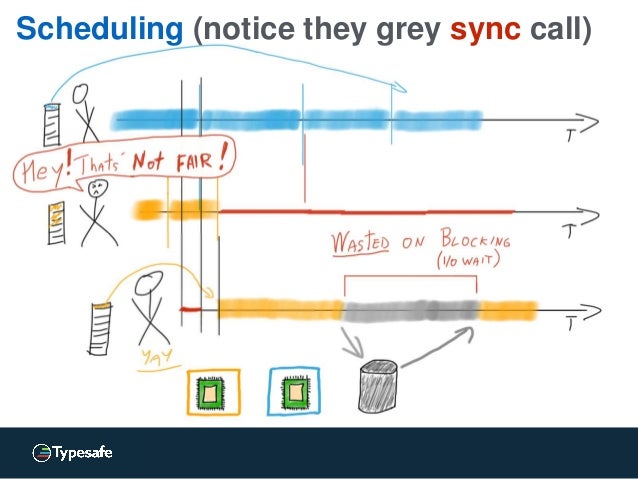
If I understand it correctly, it does not actually work like this in any reasonable runtime environment / operating system. As an example, consider doing java.io.InputStream.read() on a socket in Java (or any other language on the JVM) on Linux. If there is not data available in the buffer, this call will block until some packet is received by the network interface, which may take several seconds. During that time, the JVM Thread is blocked, but the JVM and/or Linux kernel will reschedule the CPU core to another thread or process and will wait for the network interface to issue an interrupt when some packet is received. You will waste some time on thread scheduling overhead and user/kernel mode switching, but that’s typically much less than the I/O waiting time.
Leafpad > gedit
I want a simple, fast and lightweight text editor for my Linux desktop. I don’t want to learn a lot of new arcane key bindings, so not Vim or Emacs. I want a real GUI desktop application, not a console based one, so not nano (even though nano is nice when you only have a text console available). I don’t want a full-blown IDE for programming (I already have that) so I don’t need syntax highlighting and similar features.
How to fix keyboard layout in Ubuntu 14.04
I regularly use Swedish keyboard layout, but I keep the English layout around in case I would like to temporary switch to it.
Ubuntu 14.04 sometimes mess this up and I suddenly get English layout when I log in. I fix this by installing dconf-editor, go to desktop/ibus/general, and make sure that the values engines-order and preload-engines are the same and in the desired order with the default layout first.
Running Adobe Lightroom 4.4 in Ubuntu 14.04
I use Adobe Lightroom 4.4 for photo editing. There is one very annoying aspect of this program, it is not available for Linux (only for Windows and Max OS X).
In order to run Lightroom on my computer, I had to use VirtualBox and install Windows 7 in it. This works, but is quite clumsy and annoying. And since Lightroom is the only reason for me to run Windows, I would like to get rid of it.
Running Jetty as a service in Ubuntu Linux
Jetty is a popular open source Java application server. In order to run it as a service on a Linux server, they recommend using a horribly overcomplicated and quite fragile script.
In Ubuntu server, there is a better way. Leverage Upstart and its declarative job definitions.
First install Jetty into /opt/jetty and create a jetty user:
useradd --user-group --shell /bin/false --home-dir /opt/jetty/temp jettyThen create a file /etc/init/jetty.conf with content like this:
Running Adobe Lightroom 4.4 in Linux
I use Adobe Lightroom 4.4 for photo editing. There is one very annoying aspect of this program, it is not available for Linux (only for Windows and Max OS X).
In order to run Lightroom on my computer, I had to use VirtualBox and install Windows 7 in it. This works, but is quite clumsy and annoying. And since Lightroom is the only reason for me to run Windows, I would like to get rid of it.
GIMP 2.8 in Ubuntu 12.04
This is no longer relevant, since the PPA have updated to GIMP 2.8.10, which has fixed the bug.
If you use Ubuntu 12.04 LTS, you only have access to the old GIMP 2.6 in the standard repositories. This is unfortunate since GIMP 2.8 have a lot of new useful features.
The standard way to get GIMP 2.8 is to use the a PPA, as described here. This used to work fine. However, then the PPA upgraded to GIMP 2.8.6, which contains a horrible UI bug (seems like neither the GIMP team, nor the PPA maintainer has any particularly strong QA process).
Using AAC music files in Android
If you have a file with .aac extension, it is AAC encoded audio in an ADTS container. If you want to play such file on an Android device, you have problems. Android 2.x does not support this file format at all, and not even the latest version of Android supports reading metadata tags from it.
The solution is to repackage the audio in an MPEG-4 container to a file with .m4a extension. Android can both play and read metadata tags from such files.
How to add password protection to GRUB2
These instructions are tested with Ubuntu desktop 12.04, but will probably be useful in other Linux distros with GRUB2 as well.
The goal is to block everything except booting the default system. In paricular, it should not be possible for anyone to boot into recovery mode, since that will bypass normal login and give root access directly.
- Run
grub-mkpasswd-pbkdf2from a terminal and enter the desired password, copy the output. - Edit
/etc/grub.d/40_customand add this to the end:
set superusers="root"
password_pbkdf2 root output from grub-mkpasswd-pbkdf2 goes here
password bogus bogus- Make
/etc/grub.d/40_customnon-readable for users:
chmod o-r /etc/grub.d/40_custom - Edit
/etc/grub.d/10_linuxaccording to this diff:
90c90,94
<   printf "menuentry '${title}' ${CLASS} {\n" "${os}" "${version}"
---
>   if ${recovery} || ${in_submenu}; then
>     printf "menuentry '${title}' ${CLASS} --users '' {\n" "${os}" "${version}"
>   else
>     printf "menuentry '${title}' ${CLASS} {\n" "${os}" "${version}"
>   fi
258c262
<     echo "submenu \"Previous Linux versions\" {"
---
> echo "submenu \"Previous Linux versions\" --users '' {"- Edit
/etc/grub.d/20_memtest86+according to this diff:
27c27
< menuentry "Memory test (memtest86+)" {
---
> menuentry "Memory test (memtest86+)" --users "" {
33c33
< menuentry "Memory test (memtest86+, serial console 115200)" {
---
> menuentry "Memory test (memtest86+, serial console 115200)" --users "" {
46c46
< #menuentry "Memory test (memtest86+, experimental multiboot)" {
---
> #menuentry "Memory test (memtest86+, experimental multiboot)" --users "" {
52c52
< #menuentry "Memory test (memtest86+, serial console 115200, experimental multiboot)" {
---
> #menuentry "Memory test (memtest86+, serial console 115200, experimental multiboot)" --users "" {- Run
update-grub
(I am not sure if it is possible to abuse memtest86+, but better safe than sorry.)
Bachata Linux
Based on what I have desscribed in the two previous posts, I have now made a Linux distribution with an install CD.
It is called Bachata Linux, check it out here.
How to roll your own bootable Linux CD-ROM
When booting a regular Linux system, it just mounts some partition with a nice file system (such as ext4) on your HDD on / read/write and there you go.
When booting from a CD-ROM, it’s not that simple. The CD-ROM file system, ISO 9660, does not support the file names and attributes that a Linux system normally needs. And the CD-ROM is read only.
There are ways to work around these issues. You can use the Rock Ridge extension to ISO 9660 to get the file names and attributes needed. And the read only issue can be handled either as I have described in an earlier post, or by using unionfs.
How to roll your own Debian based Linux distro
Goal
To build a minimal Debian based Linux system with a fully functional bash shell, TCP/IP networking with DHCP client and apt setup to be able to install any package from the Debian repositories. The resulting system will use about 157 MB disk space and consume less than 10 MB RAM.
This is now implemented in Bachata Linux.
Prerequisites
A Debian based Linux system to work from (e.g. Ubuntu desktop) with the debootstrap and extlinux packages installed. Some virtualization environment is highly recommended for testing, such as KVM/QEMU.
How to move MySQL data directory in Ubuntu Server
By default, the MySQL data is placed in /var/lib/mysql, which is a reasonable default. However, sometimes you want to place it somewhere else, such as on an other file system. Using a symlink doesn’t seem to work, so you have follow this procedure.
To move the MySQL data directory from /var/lib to /mnt/mydata, run these commands as root:
apt-get install mysql-serverservice mysql stopmv /var/lib/mysql /mnt/mydata/- replace
/var/lib/mysqlwith/mnt/mydata/mysqlin/etc/passwd– mysql/etc/mysql/my.cnf– [mysqld] datadir/etc/apparmor.d/usr.sbin.mysqld(twice)
service mysql start
Using ZTE Blade Android phone with Ubuntu 11.10
Using a ZTE Blade Android phone connected with USB is a bit tricky with Ubuntu 11.10.
First you need to apply the patch in this bug, after doing that you should get USB storage to work.
After doing that, it is also possible to get development and debugging to work over USB. Create a group androiddev (addgroup --system androiddev), and add yourself to it (gpasswd -a yourUsername androiddev). Then create a file /etc/udev/rules.d/11-android.rules with this content (4 lines, watch the line breaks):
How to disable activity logging in Ubuntu 11.10 Oneiric Ozelot
Ubuntu has mechanism to log user activity such as used documents. This is used to facilitate searching, but can also be intrusive to your privacy.
Here is a way to disable this logging without breaking Unity or any other part of the system, execute these commands in a terminal:
sudo mv /etc/xdg/autostart/zeitgeist-datahub.desktop /etc/xdg/autostart/zeitgeist-datahub.desktop-inactiverm ~/.local/share/recently-used.xbelmkdir ~/.local/share/recently-used.xbelrm -rf ~/.local/share/zeitgeist
then log out and log in again.
Backup your mobile phone in Linux
To backup data from a non-smart SonyEricsson mobile phone (such as W890i) in Linux, use the gammu utility.
-
Install gammu, it is available as a package in the standard repositories for Debian and Ubuntu, just install the
gammupackage. -
Create a
~/.gammurcfile with the following content:> > [gammu]
> port = /dev/ttyACM0
> connection = at -
Connect your mobile phone to the computer with the USB cable and select
Phone mode -
Use
> gammu backup filename.vcf -yes
Upgrade to Ubuntu 11.04 without Unity
The new Ubuntu release 11.04 Natty contains the new Unity desktop environment which is quite controversal. I have tried it for a while and I think it is neat but too buggy and immature. However, it is easy to revert to the old Gnome 2 desktop environment and have things working almost as in 10.10.
First do a normal distribution upgrade to 11.04, then go to System Settings -> Login Screen and select Ubuntu Classic as default session and reboot.
Using Sveon SNT1020 WiFi USB adapter in Ubuntu
I just brought an Sveon SNT1020 WiFi USB adapter.
It works very well with Ubuntu Linux 10.10, just connect it to an USB 2 port and you can start using it with NetworkManager right away, no drivers or setup necessary. You should possibly disable any built-in WiFi adapters first though.
It cost €35.
Mount your home directory with SSHFS in Linux
If you have your home directory on another machine, it’s common to use NFS to access it. NFS is easy to set up and works more or less out of the box on Linux. However, NFS is not secure, and you need to have a carefully setup firewall in order to use it safely.
SSHFS is a more secure alternative, but it’s quite tricky to set up on the client side. It’s very easy to set up on the server though, you just need an SSH server with SFTP support.
Linux with / mounted read-only 2.0
(This is a new version of a previous post updated to work with Ubuntu 9.10 (karmic).)
I wondered why you usually mount / (the root file system) read-write in Linux and decided to do some experiments to find out if it is possible to have it mounted read-only.
So why do you want to do that? Perhaps you have the root file system on a read-only media, such as CD-ROM. Or on a writable media which can only handle a limited number of writes, such as a CD-RW or flash disk. It would also increase security since it will be more difficult (though not impossible) for some malware to infect your system.
How to get microphone to work un Ubuntu 9.04
I finally got the microphone input on my Acer Veriton X270 to work un Ubuntu 9.04.
The trick is to uninstall PulseAudio and use ALSA only.
It even works in Skype.
Running Ubuntu Linux on Acer Veriton X270
I recently brought an Acer Veriton X270.
Ubuntu Linux 8.04 works well except for sound. Basic stereo sound output works, but sound input (microphone) and some advanced 3D and surround sound does not work. The front headphone jack does not work correctly either. (All this works in Windows, so it’s not a hardware problem.)
Apart from the poor sound support in Linux, I am quite happy with this computer. It’s small (though not super small like Mac Mini or Fujitsu ESPRIMO Q), quiet, has all features you need and works out of the box. And it has a compelling price.
Things you might want to change in Ubuntu 8.04 (hardy) desktop, part 2
After installing Ubuntu 8.04 (hardy) desktop, there are some things you might want to change. This article focus on user configuration (mostly editing dot files in your home directory) and do not require superuser access. Some of this changes requires that you log out to take effect.
Customize the bash shell
By default, bash save all commands in a history file. This can be quite annoying when you run several instances of the shell in parallel, and may also be a security concern. Add this line at the beginning of ~/.bashrc to only keep command in memory until you exit the shell:
How to setup PPTP VPN in Linux
- Create a file
/etc/ppp/peers/name:
pty "pptp host --nolaunchpppd"
name username
remotename PPTP
require-mppe-128
file /etc/ppp/options.pptp
ipparam name- Add this line to the file
/etc/ppp/chap-secrets:
username PPTP password *- Create a file
/etc/ppp/ip-up.d/tunnel
#!/bin/sh
if [ "${PPP_IPPARAM}" = "name" ]; then
   route add -net RemoteNetworkWithNetmask dev ${PPP_IFACE}
fi
RemoteNetworkWithNetmask is the network on the remote side you want to access via the VPN tunnel, e.g. 172.16.0.0/12.
Things you might want to change in Ubuntu 8.04 (hardy) desktop, part 1
After installing Ubuntu 8.04 (hardy) desktop, there are some things you might want to change. This article focus on system configuration (mostly editing in /etc) and requires superuser access (using sudo). Some of this changes requires reboot to take effect.
Fix terminal font rendering bug
There is a bug which gives bad font rendering in the terminal window. Fix it by doing this in a terminal:
cd /etc/fonts/cond.d
sudo unlink 10-hinting-medium.conf
sudo ln -s ../conf.avail/10-hinting-full.conf
Fix bug in DHCP client
Fix a bug in the DHCP client described here.
How to use mousewheel in GNU Screen
GNU Screen has support for scrollback, but by default you have to use awkward keys to use it. I would like to be able to use Shift-PageUp, Shift-PageDown and the mousewheel to scroll, just like you can do in xterm.
It was not easy to configure Screen for this, and it involves cooperation with the terminal emulator. But I finally managed to achieve a solution which works pretty well. Add this to your ~/.Xresources file (create it f you don’t have it already) (you need to log out for this to take effect):
How to use Ctrl-Tab in GNU Screen
GNU Screen allows you to open several sub-windows within one terminal window. By default, you switch between them using Ctrl-A followed by n or p. I think this is a bit clumsy, I would like to switch with Ctrl-Tab and Ctrl-Shift-Tab just like you switch tabs in Firefox and many other applications. The sub-windows in Screen is conceptually just like tabs in Firefox, so it’s logical to use the same keys to switch between them.
Packages you might want to remove from Ubuntu 8.04 (hardy) desktop
When you install Ubuntu 8.04 (hardy) desktop, you get a lot of packages installed by default. Most users will never use many of these packages, so you end up with a lot of unnecessary packages. Most of these packages are harmless and only waste disk space when not used.
However, some packages can actually affect the system in a negative way, such as draining resources (other then disk space), and you should consider removing them if you not actively use them.
Linux with / mounted read-only
(This post has been edited since it was first published.)
I wondered why you usually mount / (the root file system) read-write in Linux and decided to do some experiments to find out if it is possible to have it mounted read-only.
So why do you want to do that? Perhaps you have the root file system on a read-only media, such as CD-ROM. Or on a writable media which can only handle a limited number of writes, such as a CD-RW or flash disk. It would also increase security since it will be more difficult (though not impossible) for some malware to infect your system.
Why can only root listen to ports below 1024?
(This article has been edited since it’s first publication.)
In Linux, and other UNIX-like systems, you have to be root (have superuser privileges) in order to listen to TCP or UDP ports below 1024 (the well-known ports).
This port 1024 limit is a security measure. But it is based on an obsolete security model and today it only gives a false sense of security and contributes to security holes.
The port 1024 limit forces you to run all network daemons with
superuser privileges, which might open security holes. Without the port 1024 limit, most network daemons (except sshd), could be run without superuser privileges. Some daemons try to remedy this potential security hole by dropping the superuser privileges after binding to the port, but you still need to start the daemon as root. And this does not work if the daemon is written in Java, which is quite popular for web servers.
Linux on diskless workstation
When the built-in HDD controller in my computer broke down, I decided to try running my computer diskless with LAN booting. I use Ubuntu Linux 6.10 and I have another computer with a large HDD acting as server.
I followed the instructions in this HOWTO. I changed MODULES to “netboot” in initramfs.conf and I had to add a driver for my network adapter to the modules file in the initramfs configuration. It took me a while to realize why it didn’t work without the network adapter driver. I also mounted /tmp as tmpfs.